![3B3IYU6g_jdQdaDL__-LAye4QbF5U6wN3dW35BWNOnqrqGZULgWBjPlLD4yJtG9-4NhwQuox6CyWBmIUYDDizw6n_-ohG4drc3oMiSj3VjR4il0dvP02rbPnqZzPJbrpav5vKpGLdM2CE9z5Ch_CMeU.png]](https://support.shelterzoom.com/hs-fs/hubfs/3B3IYU6g_jdQdaDL__-LAye4QbF5U6wN3dW35BWNOnqrqGZULgWBjPlLD4yJtG9-4NhwQuox6CyWBmIUYDDizw6n_-ohG4drc3oMiSj3VjR4il0dvP02rbPnqZzPJbrpav5vKpGLdM2CE9z5Ch_CMeU.png?height=40&name=3B3IYU6g_jdQdaDL__-LAye4QbF5U6wN3dW35BWNOnqrqGZULgWBjPlLD4yJtG9-4NhwQuox6CyWBmIUYDDizw6n_-ohG4drc3oMiSj3VjR4il0dvP02rbPnqZzPJbrpav5vKpGLdM2CE9z5Ch_CMeU.png)
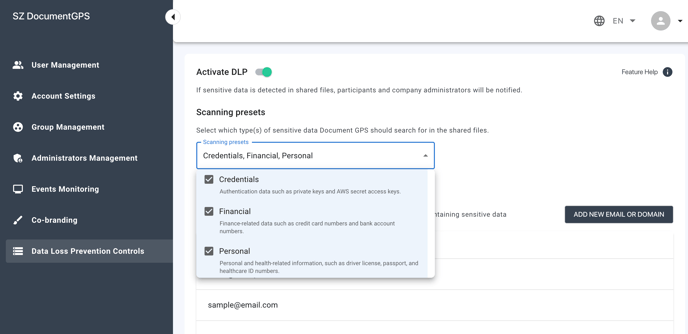
To activate DLP:
Once your Enterprise subscription is set up, open your Admin Panel and access the DLP settings page from the side menu on the left.

On the settings page:
- Toggle the Activate DLP button to start scanning for sensitive content
- Under Scanning Presets select which type(s) of content you want DLP to scan for. At least one preset must be selected.
- You can exclude specific email addresses from being scanned by adding them to the whitelist.
Once DLP scanning is working, a notification is sent if all of the following conditions are in place:
- The document is owned by a user of your company.
- The document type is supported (see below).
- The document has been shared with one or more recipients not listed on the whitelist or the document permissions were set to General Access by the owner.
- The document contains data in one of the selected preset categories.
The owner of the document will receive an email notification that DLP has identified sensitive information and the Events Monitoring screen in the Admin Panel will log the event. Recipients of the document are not notified if sensitive data is discovered.
Typically, you will be notified within 20 minutes after the document is shared. The system also scans documents each time they have been edited inside Document GPS. The following file types are supported:
- Office documents: .doc, .docx, .pdf, .xls, .xlsx
- Standard files of email messages: .eml
- Compressed files: .gz, .gzip, .tar, .zip (excluding password-protected)
- Non-binary text files, provided they contain text in a standard encoding: .csv, .htm, .html, .json, .jsonl, .tsv, .txt, .xml, .yaml